
☕🤖 Tutorial: Clone Any YouTube Channel With AI (NotebookLM Hack)
PLUS: 7 prompts to use right away (life examples)...


Hey AI Break fam 👋 Luis & Rui here. Most creators don’t “just have good ideas”.
They have a repeatable system:
how they hook you
how they pace
how they structure
how they keep you watching
Today you’ll build a simple “chat-with-the-channel” setup using NotebookLM, so you can study any creator like a coach and pull the patterns into your own content.

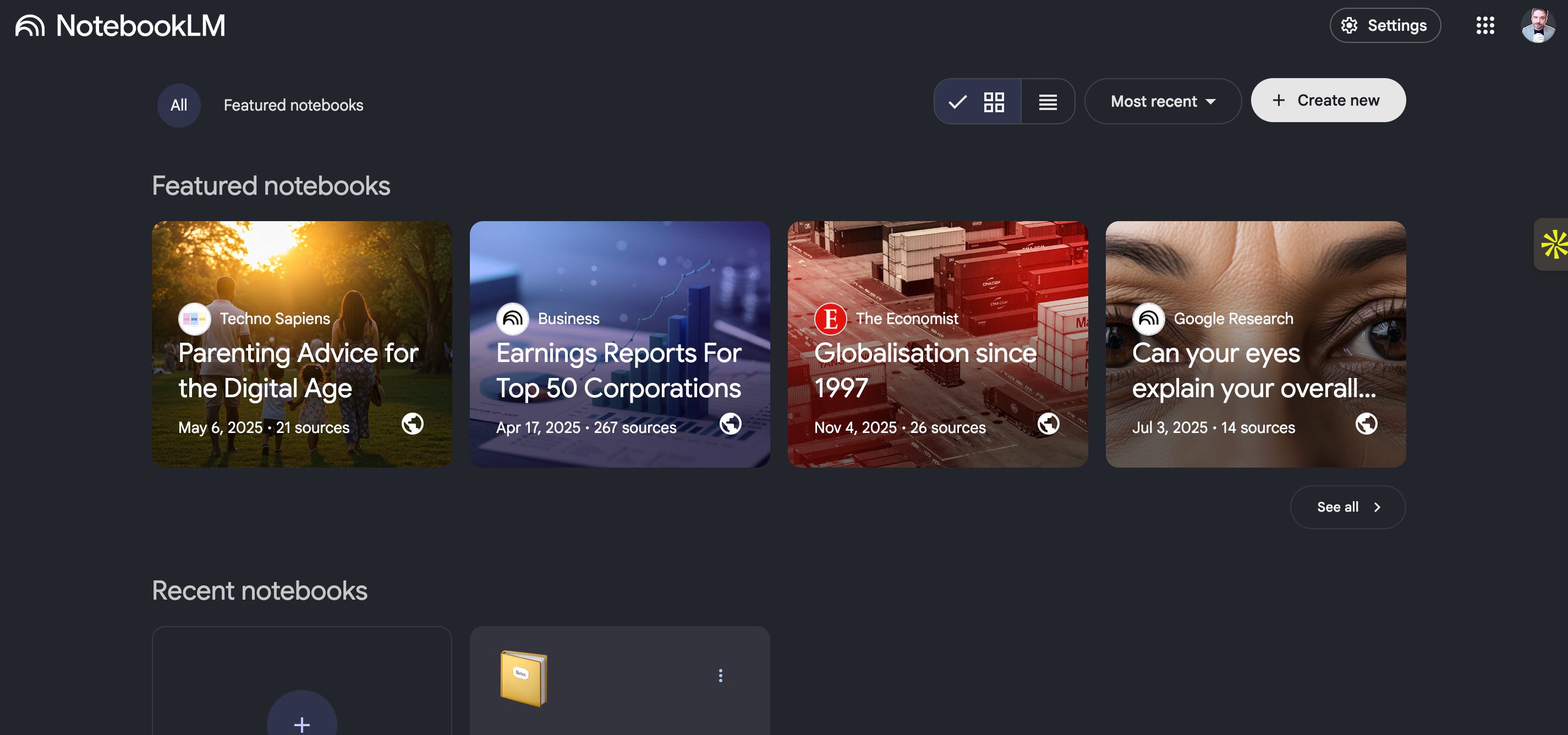
Step 1: Open NotebookLM and create a new notebook
Open NotebookLM by Google
Click Try NotebookLM
Sign in (if it’s your first time)
Click New notebook
NotebookLM lets you add sources in different ways (files, Drive, websites, YouTube).
For cloning a YouTube channel, we’re importing the channel’s video links.
Step 2: Install the 2 Chrome extensions
We’re going to use:
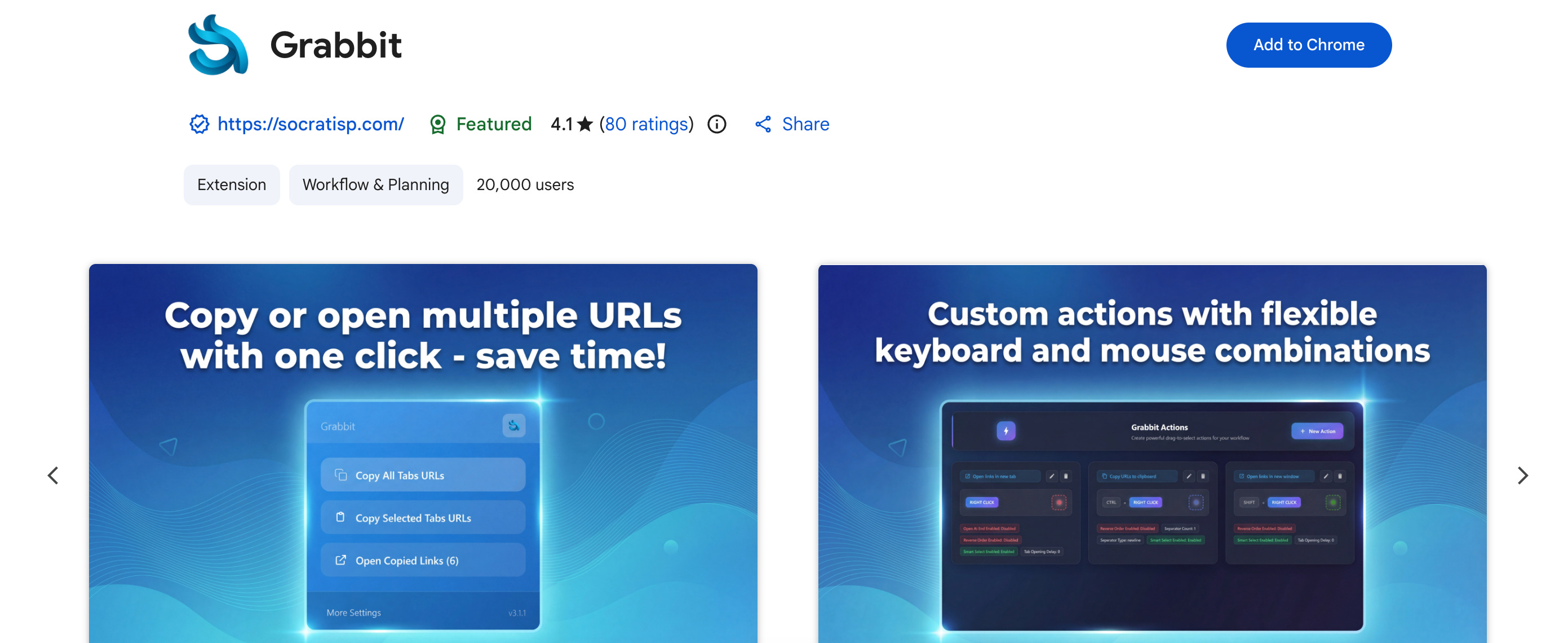
1) Grabbit
This extension copies all visible video URLs from a YouTube channel page into your clipboard.
2) NotebookLMorter (NotebookLM importer)
This extension lets you send a full list of URLs directly into NotebookLM without adding them one by one.
Step 3: Set up Grabbit (one-time setup)
Click the extension icon
Click More settings
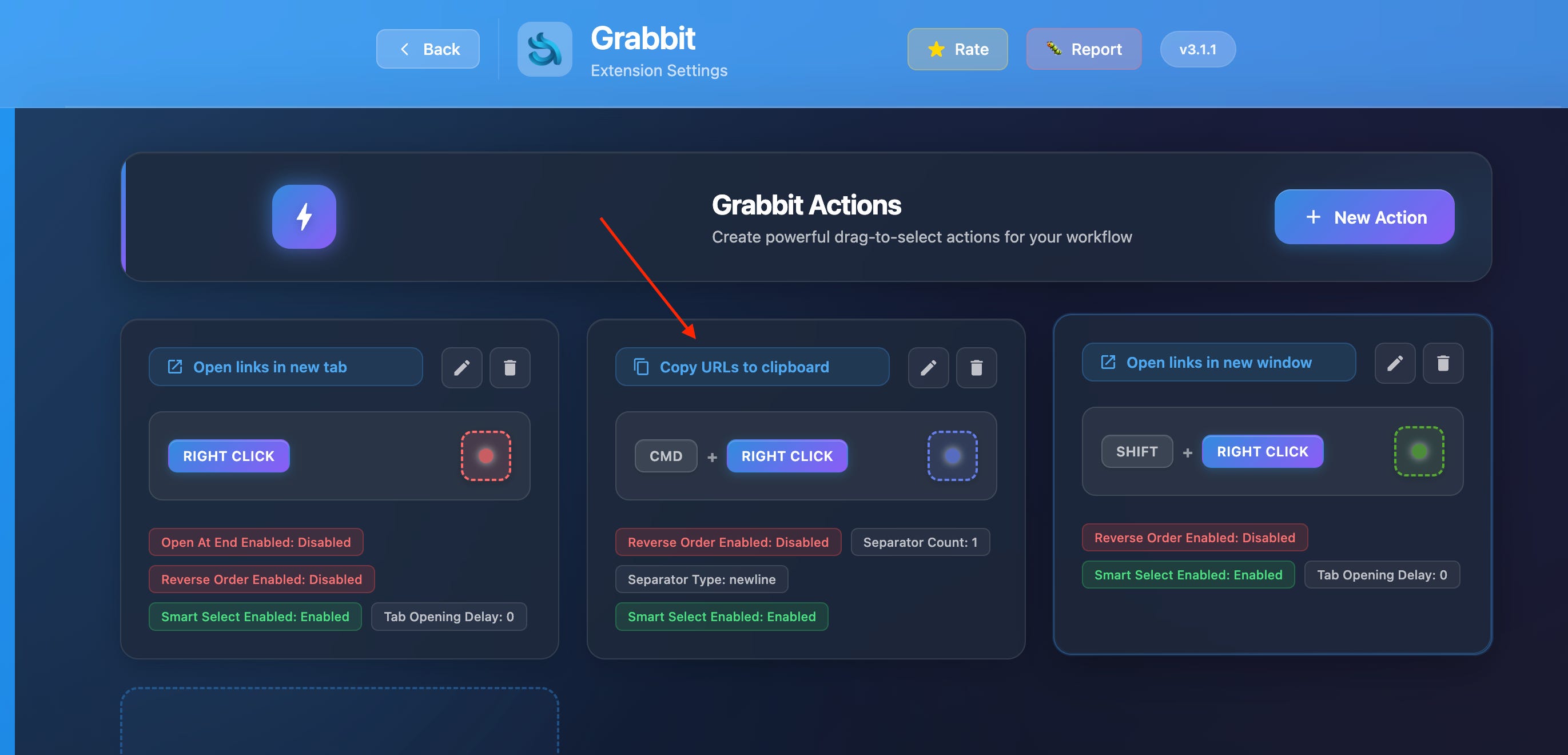
Scroll down and click Add new action
Configure it like this:
Select a mouse button of your choice
Assign a shortcut key (example: Control + Shift)
In Action Type, choose Copy URLs to clipboard
Click Save
You now have a shortcut that copies all visible video links on a page.
Step 4: Copy all video links from the channel
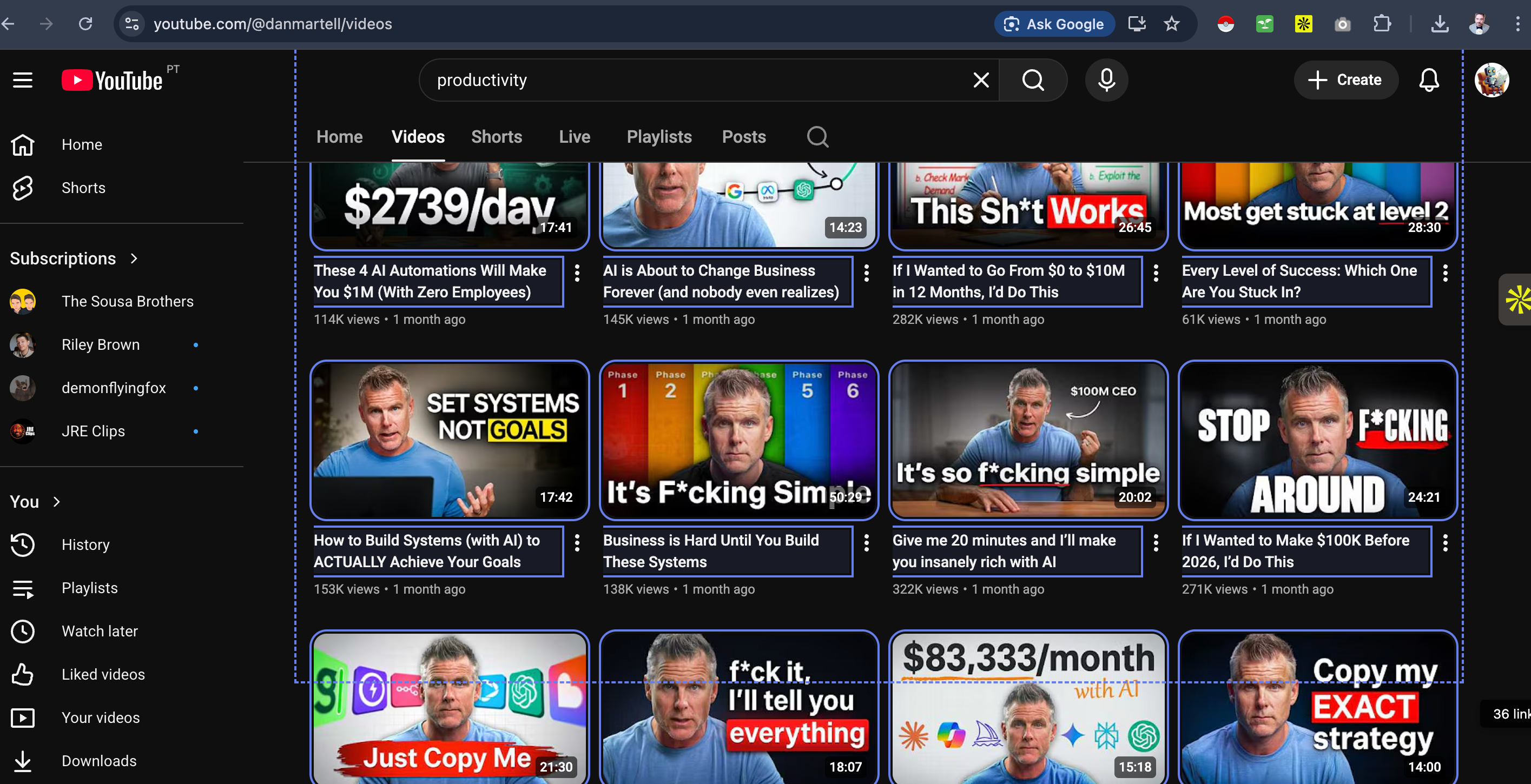
Go to the YouTube channel you want to clone
Scroll down to load as many videos as possible
The more videos you load, the better your clone will be.Press your shortcut and click the mouse button you selected
Grabbit will start detecting links and you’ll see a message like:
“25 URLs copied to clipboard” (or more)
Step 5: Import all links into NotebookLM (bulk)
Now install the second extension: NotebookLM Web Importer.
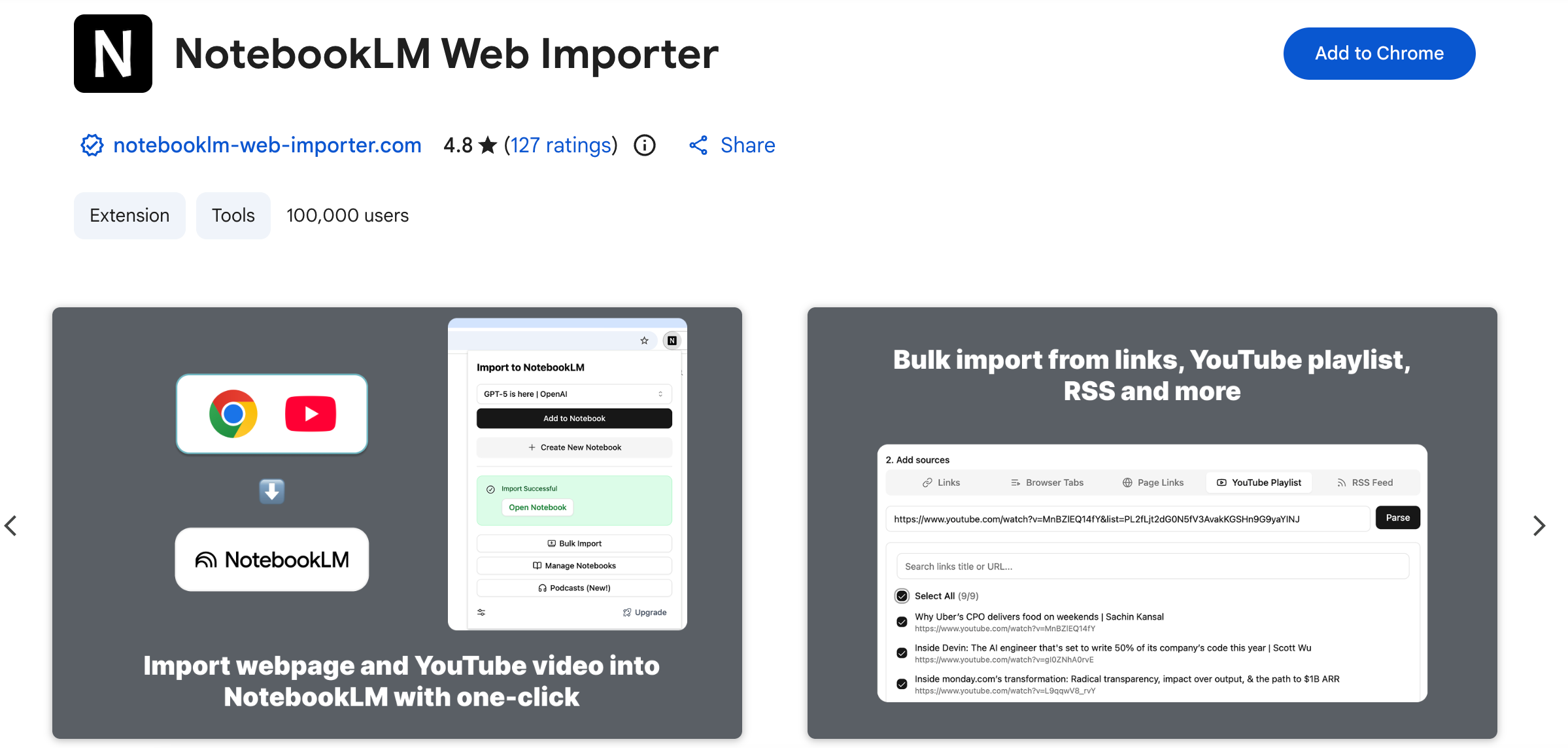
Click the NotebookLM Web Importer extension
Select the notebook you created earlier
Switch to From URL list
Paste all the URLs you copied
Click Import URLs
NotebookLM will now start crawling every video. It extracts:
the transcript
key points
important information
You’ll see all the videos being added inside your notebook as sources.
Step 6: Chat with your “clone YouTuber”
Once all videos are imported, you can start chatting.
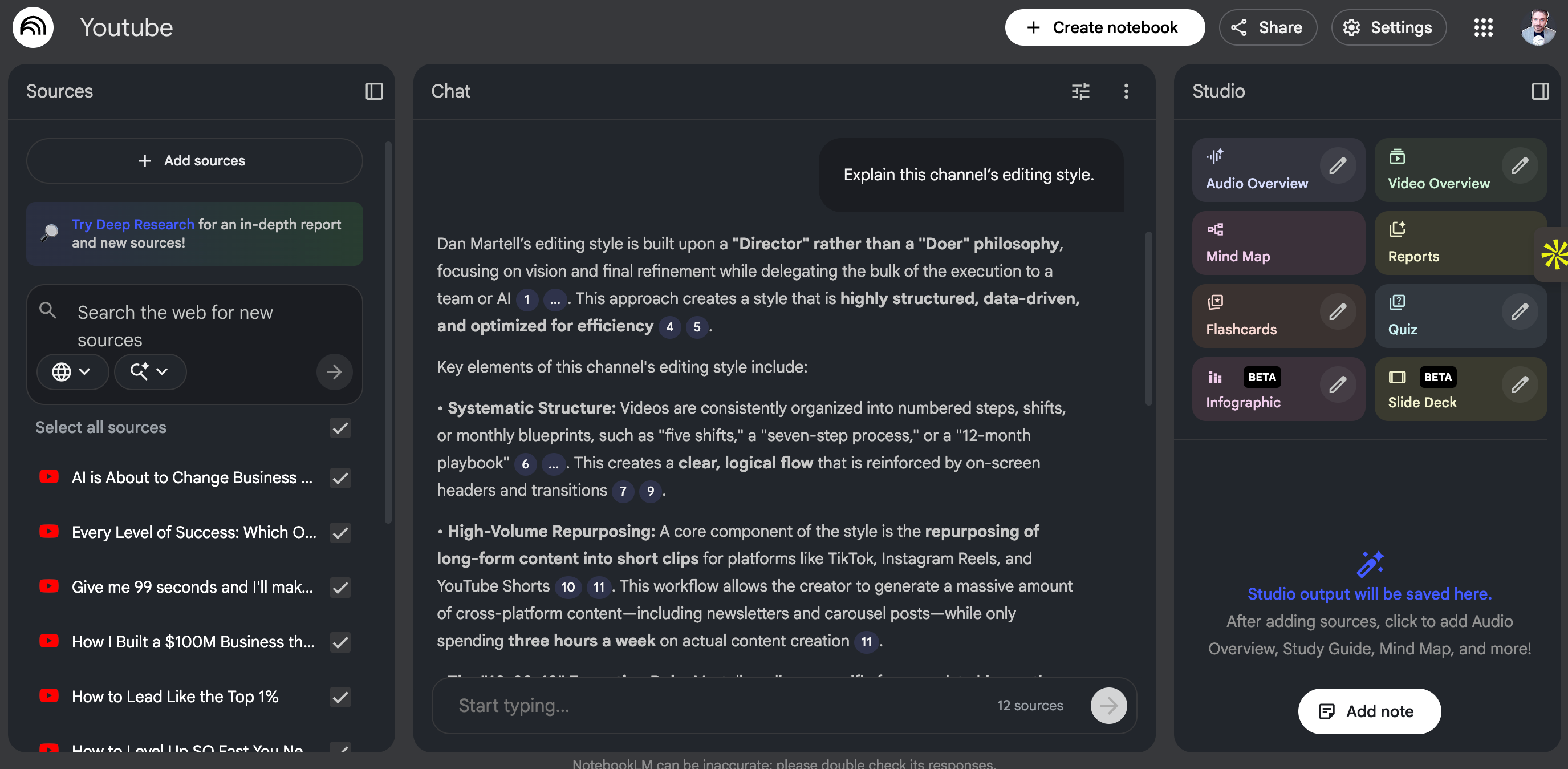
Try questions like:
“Explain this channel’s editing style.”
“Give me video ideas like this creator.”
“How does this YouTuber structure their content?”
“What do they do in the first 15 seconds to keep attention?”
“What topics and angles repeat the most?”
Pro tip: click Sources to see exactly which video and which part of the transcript the answer came from. This is how you verify the output.
Step 7: Use Audio Overview and Video Overview
NotebookLM has two powerful features you can generate with one click:
Audio Overview
Creates a podcast-style conversation between a male and female voice summarizing your notebook.
Perfect for learning while walking, commuting, or doing chores.
Video Overview
Creates a slideshow-style presentation with visuals and narration.
Perfect for quickly studying the creator’s frameworks and repeated patterns.
Use both for learning or inspiration.